
ScaffPlan 2026 Compatibility:
✅ Compatible with SketchUp 2026 Pro and Studio versions.
✅ Start Fresh with ScaffPlan 2026
Complete all ongoing projects in current version of SketchUp and ScaffPlan. Use SketchUp and ScaffPlan 2026 only for new projects to prevent compatibility issues.
We recommend keeping current version(s) installed alongside 2026. This allows to finish existing work without disruption while starting new jobs in the updated version.
🚧ScaffPlan Compatibility:
Models created in earlier versions of ScaffPlan cannot be opened in ScaffPlan 2026.
1. SketchUp 2026 Installation Instructions for Windows.
-
Download the SketchUp 2026 installer for Windows.
Before proceeding, ensure your graphics card drivers are up to date and that your computer meets SketchUp’s System Requirements.

Note: You do not need to uninstall previous versions of SketchUp before installing or updating.
2.Run the Installer to start installation process.
Locate the downloaded SketchUp 2026 installer file, right-click it, and choose Run as administrator.
Approve any security prompts that appear to allow the installation to proceed.
3.Choose Components
When the setup window opens, you’ll see the additional available components included with SketchUp Studio - including Scan Essentials and Revit Importer.

Note: V-Ray for SketchUp requires a separate installation process. For setup instructions, refer to the Installing V-Ray for SketchUp guide.
4.Set Language and Install Location.
To select your preferred language, click Change... next to Install Languages.
To choose a different installation folder, click Change... next to Destination Directory.
Tip: While you can install SketchUp anywhere, we recommend keeping it on the C:\ drive.
5. Start Installation
Click Install to begin. A progress window will display the installation status.
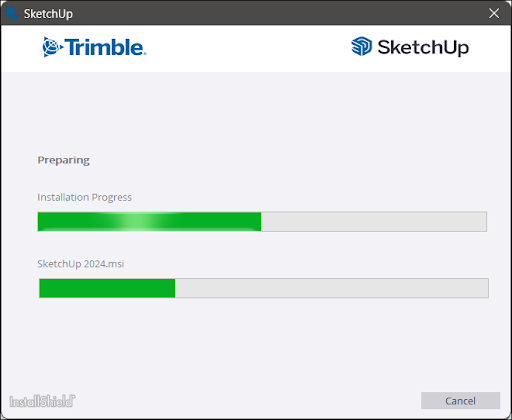
6. Once you see the "SketchUp is Ready to Go!" message, click the SketchUp icon in the window to launch the program immediately.
If you prefer to start later, click Finish to close the installer.

Tip: After installation, we recommend restarting your computer to make sure all SketchUp components are properly initialized.
2.ScaffPlan 2026 Installation Instructions.
BEFORE PROCEEDING:
Used ScaffPlan for SketchUp 2026 before?
Uninstall Scaffplan 2026 Trial using Programs and Features.

- Download the installer provided by a link in pop-up message inside of the previous version.
- Install ScaffPlan for Sketchup using the installation wizard:


To learn how to get the most out of ScaffPlan for SketchUp, please head over to the ScaffPlan E-LEARNING course and we also recommend using the KNOWLEDGE BASE to search for answers you might possibly have.
Need help? Our Support team is here for you to help.